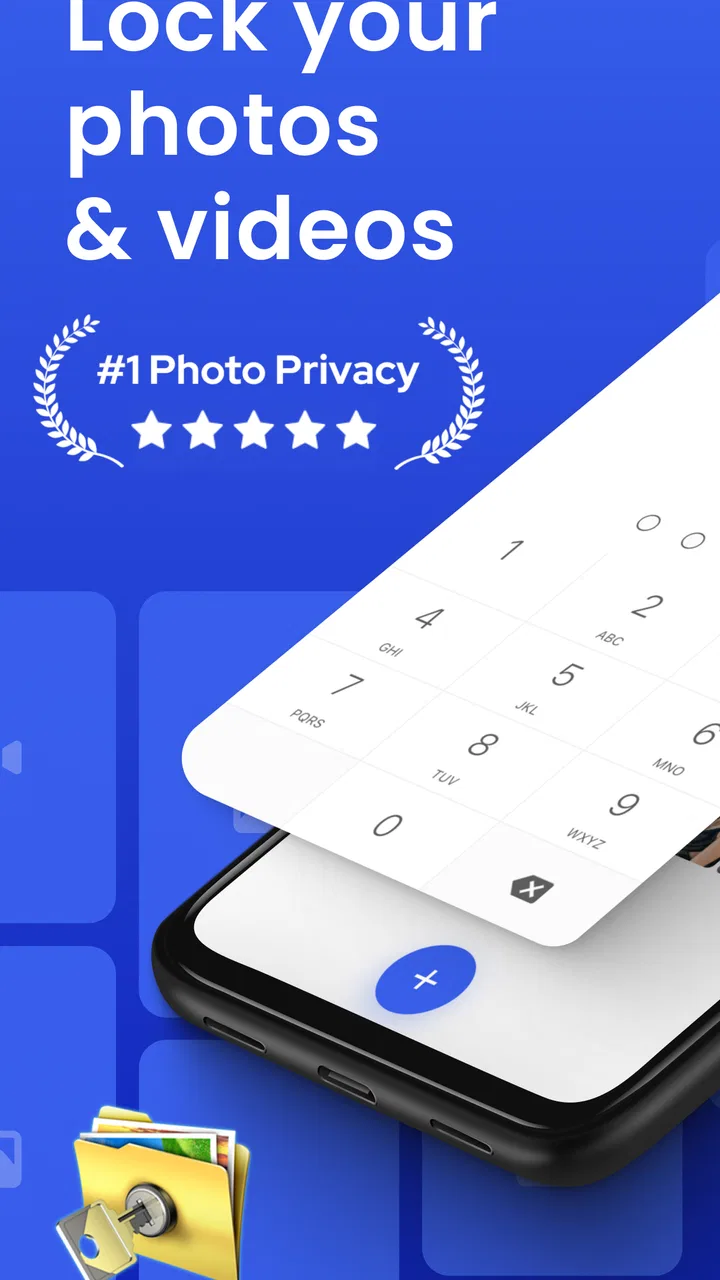
Private Photo Vault
- 4.8
- Rating
- 10.00M
- Installs
- Free
- Price

 Analysis by App-foxy
Keeping personal photos separate from the main gallery sounds simple until a private image appears beside screenshots, downloads, and family pictures. Private Photo Vault is built for that exact problem. I found it most useful as a focused photography app for moving selected photos and videos into a more discreet space, rather than as a replacement for the phone’s entire gallery system. The first successful result is easy to understand: choose a personal image, place it in the vault, and stop seeing it in the ordinary photo stream.
Private Photo Vault is free to install, aimed at Everyone, and comes from Legendary Software Labs LLC. It has been available since April 6, 2015, and its current version is 7.1.3. The app has earned a 4.8 average from around 234 thousand ratings and has passed 10 million installs, which suggests that the basic idea has connected with a large audience. That popularity does not make it perfect, but it does make it easier to approach as a mature, purpose-built option rather than an experimental photo tool.
What to expect before moving your first photo
The main thing to understand is that this is a privacy organizer, not a creative camera or editing suite. You are not opening it to improve lighting, add filters, or manage every picture on your phone. You are opening it when a particular photo or video should be kept away from casual browsing. That narrow purpose is one of its strengths because the interface can focus on storing private media instead of competing with the phone’s normal gallery.
You May Also Like

 Blood Strike: 2.5 Anniversary
Blood Strike’s Loadouts Turn Every Drop Into a Tactical Gamble
A close look at Blood Strike’s custom loadouts: how fast access to signature weapons reshapes its battle royale rhythm, rewards preparation, and narrows the gap between fights.

 Pandora - Music & Podcasts
Pandora’s Music Is Easy to Start, but Harder to Recover
Pandora’s strength is its low-effort path from a seed to a station. Its weak spot is how much confidence it asks you to place in connection, setup, and quiet recovery.

 8 Ball Pool
 Is Built on Rivalries, Rematches, and Routine
A close look at the rivalries, rematches, shared routines, and unanswered safety questions that turn a quick pool match into a persistent mobile community.

 Samsung Music
’s Quiet Strength Is Playing What You Already Own
Its reach comes less from spectacle than from dependable access to a personal library. That simplicity is both the app’s strongest retention engine and its ceiling.

 AccuWeather: Weather Radar
AccuWeather Review: A Quick, Clear Forecast for Everyday Decisions
For everyday plans, the best forecast is the one you can understand quickly. AccuWeather makes rain timing, radar, and local conditions easy to act on, with a few trade-offs.

 Hill Climb Racing
Why Hill Climb Racing Still Turns Crashes Into One More Run
A tiny car, a bumpy hill and one more upgrade: Hill Climb Racing keeps resurfacing because its simple chaos makes every near-miss feel personal.
More From Our News Desk



In everyday use, I would think of it as a second destination for selected content. My regular gallery remains the place for travel pictures, receipts, screenshots, and images I want to share quickly. The vault is for material I would rather not have appear while scrolling through the main gallery in front of someone else. This separation is especially practical on a shared device, during a family photo session, or when handing a phone to somebody who only needs to see one particular album.
The app’s free entry point makes trying that workflow straightforward. There are in-app purchases ranging from $2.99 to $179.99 per item, so I would look carefully at any upgrade screen before confirming a purchase. The important question is not simply whether a paid option exists; it is whether the free experience already handles the small collection you want to protect. For a first-time user, testing the basic import-and-open routine before paying is the sensible approach.
One useful distinction is between hiding a picture and creating a complete security strategy. A vault can reduce accidental exposure, but it should not encourage careless handling of the original file, shared copies, cloud backups, or messaging attachments. If an image has already been sent elsewhere, placing one copy inside this app does not retract those other copies. I see Private Photo Vault as a practical privacy layer for the phone, not a guarantee that a file can never exist outside it.
Who will get the most value from it
I would recommend it to someone who wants a dedicated place for personal photos and videos without constantly sorting the main gallery. It also suits people who often lend their phone to friends or relatives and want a simple boundary around selected media. A person with a small, clearly defined private collection will probably understand the benefit quickly.
It is less convincing for someone who wants a sophisticated media-management system with extensive tagging, professional archival tools, or a seamless workflow across many devices. It may also be the wrong choice if your main concern is protecting every file on the phone. In that case, device-level security and careful backup habits matter just as much as a separate vault. The app is strongest when the problem is selective privacy, not total digital security.
Setting it up without overcomplicating the first session
After installing the app, I would begin with a deliberately small test rather than importing an entire library. Pick one ordinary photo that is not irreplaceable and one short video if you want to check both media types. This gives you a safe way to learn the movement between the normal gallery and the private area, and it prevents a rushed first session from becoming a confusing bulk operation.
The first setup should also be treated as a decision about organization. Before importing anything, decide whether the vault is for sensitive personal images, private documents photographed with the phone, or a mixture of categories. A mixed collection can become hard to search mentally later. Even if you only have a handful of files now, a simple rule such as “personal media only” makes future cleanup much easier.
When the app asks you to establish access protection, choose something you can reliably remember without using an obvious sequence. A privacy tool becomes frustrating if you forget the way in, but an easy-to-guess code defeats the purpose. I would avoid using a detail visible on the lock screen or a number you routinely share with family members. The best compromise is memorable to you and uninteresting to anyone watching you use the phone.
On Android, the listed minimum operating-system requirement is 7.0. That makes the app relevant to older compatible devices as well as newer phones, although the experience can still vary with the phone’s gallery behavior and storage setup. If you are using an older handset, I would keep the first import modest and confirm that the original and private copies behave as expected before moving a large collection.
There is also a practical housekeeping step that many first-time users skip: check the ordinary gallery after importing a test item. The goal is not merely to see the photo inside the vault. You also want to understand whether the original remains visible in the usual photo application, whether you now have duplicates, and which copy you intend to keep. This small check prevents the common mistake of assuming that importing automatically completes every part of the cleanup.
The first successful action should be intentionally boring
For a reassuring first result, I would choose a harmless test photo, add it to the vault, close the app, and then return to confirm that I can find it again. That sequence tests more than a single tap: it checks that the item was accepted, that the private area is understandable, and that reopening the app does not leave you wondering where the media went.
Once that works, repeat the process with a photo you genuinely want to keep private. I prefer doing this one item at a time at first because it reveals the app’s rhythm. You learn how selection works, where confirmation appears, and how to return to the private collection. After that, a larger batch becomes less intimidating because you already know what a successful import looks like.
A realistic example would be taking a picture of a personal document for temporary reference. I might need the image for a few days, but I would not want it mixed with vacation photos or visible during a casual gallery swipe. I could place it in the vault, use it when needed, and later remove it when the task is finished. That workflow is more useful than treating the vault as a permanent dumping ground.
Another everyday situation is lending your phone to a child who wants to browse pictures. Instead of deleting or hiding every unrelated image manually, you can keep the private selection away from the normal browsing experience. I would still stay nearby and avoid assuming that any app alone replaces sensible supervision, but the separation reduces the chance of an awkward accidental swipe.
Videos deserve their own test because they can be larger, slower to move, and more important to verify afterward. I would use a short, replaceable clip rather than an irreplaceable recording. Open it inside the vault, check that playback is usable, and make sure you know where the item appears when you return later. This is one of the more valuable first-session checks because a vault that works well for still images may feel different with video handling.
Confusion that can appear after the first import
The most likely misunderstanding is expecting a private vault to behave exactly like the phone’s default gallery. The two experiences serve different purposes. The normal gallery is optimized for quick capture, automatic grouping, sharing, and broad browsing. A dedicated vault is intentionally more deliberate. If you open it expecting every familiar gallery shortcut, you may initially feel that routine actions take an extra step.
Another source of confusion is the difference between importing, moving, and deleting. These words describe different outcomes. If the app creates or retains a separate copy, the original may still be present elsewhere. If you remove the ordinary copy, you should be certain that the private version opens correctly first. I recommend checking the image inside the vault before cleaning the gallery, especially for something you cannot recreate.
It is also easy to forget that privacy depends on the whole phone, not just the vault screen. A thumbnail may have been shared in a message, included in a backup, or captured in another context before you placed the original inside the app. For sensitive material, I would review where the image has already traveled and avoid using the phone’s share controls casually. Private Photo Vault can organize the copy you place in it, but it cannot rewrite the history of a file.
Access recovery is another point worth considering before you store anything important. I would not wait until the vault contains irreplaceable memories to discover that I cannot remember the chosen access method. Keep your method secure and memorable, and do not assume that a privacy app should be used as the only location for treasured photos. For family memories, I prefer maintaining a separate, trusted backup while keeping the private viewing copy in the vault.
Paid prompts can also create hesitation. Since the app is free but includes optional purchases, read the wording and price carefully before proceeding. I would first use the basic workflow long enough to decide whether it fits my habits. A premium feature is only worthwhile if it solves a problem I actually have, such as managing a larger collection or making the routine more comfortable; paying simply because an upgrade screen appears is not a good test of value.
How it compares with ordinary gallery tools
The default gallery wins for speed. It is usually the place where new pictures arrive, where sharing is immediate, and where the phone’s broader photo features are already integrated. If you rarely handle sensitive media, adding a separate vault may feel unnecessary. The extra app introduces another destination to remember and another access step before you can view selected files.
Private Photo Vault wins when separation matters more than convenience. A standard gallery can be perfectly fine for organizing albums, but it is not designed around the specific moment when you want a photo out of casual view. The dedicated approach makes the privacy task more visible and repeatable. I would choose it over relying on a vague album name or hoping that nobody scrolls far enough in the main gallery.
It also differs from a general cloud photo service. Cloud tools are often better for synchronization, searching a large library, and recovering files after a device change. A vault is more focused on local, intentional access from the phone. If your priority is seeing the same collection everywhere, a cloud-centered workflow may be better. If your priority is keeping a selected set apart during everyday phone use, the vault’s narrower design is more relevant.
Device-level security remains the foundation underneath either option. A strong screen lock, careful sharing, and sensible backup choices protect more than a single folder can. I would use the vault alongside those habits, not instead of them. That is the trade-off: the app makes selective privacy easier, while the phone’s built-in protections cover the wider environment.
Making the vault useful after the first day
Once the basic import works, the next step is to create a maintenance habit. I would review the private collection occasionally and remove temporary files that no longer need special handling. This is particularly helpful for photographed documents, travel details, or images saved for a short project. A smaller vault is easier to inspect, easier to back up thoughtfully, and less likely to become a second chaotic gallery.
For a larger collection, use a consistent mental filing system even if you do not need elaborate categories. Grouping by purpose—personal memories, temporary documents, or private videos—helps you decide what belongs there. The non-obvious benefit is that organization improves privacy too: when you know exactly what the vault contains, you are less likely to leave an unnecessary file protected indefinitely or forget an important one during cleanup.
I would also make a habit of testing access after major phone changes, such as moving to a new device or changing how photos are stored. Do not wait until you need a particular image urgently. Open a few representative items, including a video, and confirm that your routine still makes sense. This takes little time and can expose a migration or storage issue before it affects something important.
For people who share devices, the best workflow is to prepare before handing over the phone. Close the vault, return to a neutral screen, and open the ordinary gallery only if that is what the other person needs. This is a small behavioral detail, but it matters: privacy tools work better when the user deliberately exits them instead of assuming that the next app or screen will hide everything automatically.
My overall view is favorable, with a clear boundary. Private Photo Vault is a sensible choice when you want a dedicated place for selected photos and videos and are willing to maintain that separation. Its free starting point, long availability, and strong user response make it easy to try, while the focused purpose keeps the first meaningful action understandable. The main friction comes from having another media location, checking what happens to originals, and remembering that a vault is only one layer of privacy.
I would install it for a personal collection that needs to stay out of the ordinary gallery, especially on a phone that is often passed around. I would skip it if I mainly need cloud synchronization, professional photo management, or protection for every kind of file on the device. For everyone else, my advice is simple: begin with one replaceable photo, confirm the complete path from import to reopening, and only then trust the app with media that matters. That cautious first step turns the vault from a mysterious extra app into a practical part of your daily phone routine.
FAQs for Private Photo Vault
01What is Private Photo Vault, and what does it do?
Private Photo Vault is a privacy-focused app designed to store personal photos and videos away from your device’s regular gallery. After importing media, you can protect the vault with a passcode or biometric authentication, depending on your device and settings. It is useful for organizing sensitive content, but it should be treated as an additional privacy layer rather than a replacement for a complete device backup or security system.
02How secure is Private Photo Vault for storing personal pictures and videos?
The app provides useful protection by placing selected photos and videos behind a passcode, PIN, or supported biometric login. However, security also depends on your phone’s operating-system protection, the strength of your password, and whether anyone else knows your credentials. Before using it for important files, review its privacy policy and backup options, and avoid relying on the app as the only copy of valuable or irreplaceable media.
03Can I recover my photos if I forget the Private Photo Vault password?
Password recovery depends on the version of the app, the recovery method you configured, and whether backup or account-related features are available. You should set up any recovery option during the initial configuration and keep your credentials in a secure password manager. If no recovery method exists, forgetting the passcode may prevent access to the vault, so testing the recovery process before importing sensitive files is strongly recommended.
04Does Private Photo Vault delete photos from my normal gallery after importing them?
Private Photo Vault may offer an option to remove imported items from the device’s standard gallery, but you should confirm the result manually after moving files. The exact behavior can vary between Android and iOS versions, and media may remain visible in other locations such as cloud synchronization, file managers, thumbnails, or recently deleted folders. Always check the app’s instructions before deleting originals, especially when the files are important.
05Is Private Photo Vault free, and are there advertisements or premium features?
Private Photo Vault generally offers a free version, although availability of features, advertising, storage limits, and subscription options can vary by platform and region. Premium features may include a more private experience, additional organization tools, expanded storage, or other advanced controls. Check the current Google Play Store or Apple App Store listing before downloading, and review in-app purchase terms so you understand recurring charges and trial conditions.
Pros
- PIN
- password
- or fingerprint protection keeps private photos hidden.
- Decoy passwords can display a separate vault for added privacy.
- Built-in camera saves new photos directly inside the protected vault.
- Break-in reports can capture intruders who enter incorrect passwords.
- Photos can be organized into multiple albums within the private space.
Cons
- Some advanced privacy features require a premium subscription.
- Forgetting the passcode may make recovery difficult or impossible.
- The app may need broad photo and storage permissions to work properly.
- Ads or upgrade prompts can affect the experience in the free version.
- Cloud backup options may vary and should not replace personal backups.

Private Photo Vault
Gallery